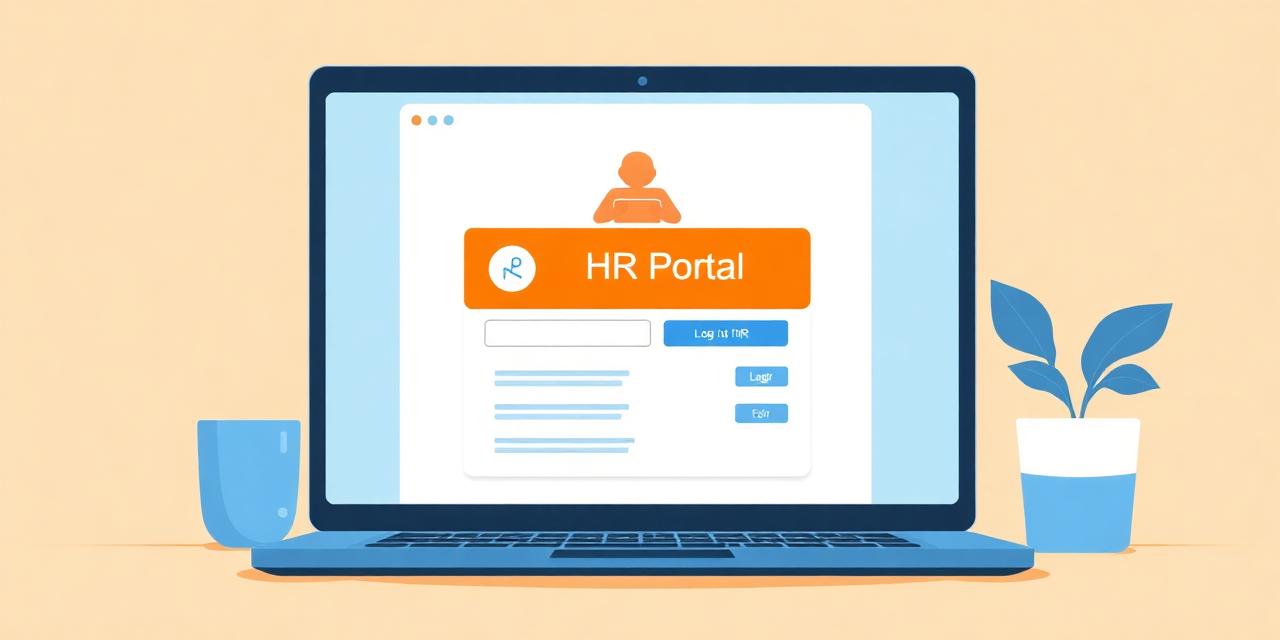
Login step-by-step
- 1Open the official portal
Type hrms.bihar.gov.in directly in your browser. Avoid clicking on links shared over WhatsApp or SMS to prevent phishing.
- 2Click on 'Employee Login'
You will find the login card on the top-right of the homepage. First-time users should use 'New Registration' instead.
- 3Enter your Employee ID
Use the exact Employee ID printed on your pay slip. Do not add any spaces or state prefixes.
- 4Enter your password
Passwords are case-sensitive. If you have forgotten it, use 'Forgot Password' to reset via OTP.
- 5Solve the captcha
Type the captcha exactly as displayed. Click the refresh icon if it is unreadable.
- 6Verify OTP (if enabled)
For sensitive actions, an OTP is sent to your Aadhaar-linked mobile. Enter it within 10 minutes.
- 7Land on the dashboard
You will see modules for Salary, Leave, Service Book, GPF, Profile and Grievance in the left sidebar.
Login requirements
Issued by your department at the time of joining. Contractual staff also receive an Employee ID.
Aadhaar-linked mobile is required for OTP-based verification.
Latest Chrome, Firefox or Edge. Internet Explorer is not supported.
The portal times out after 15 minutes of inactivity. Use a stable connection when uploading documents.
Wrong Employee ID (extra spaces), Caps Lock left on, expired session tokens and blocked cookies are the four most common reasons for login failure.
Login error codes
| Code | Meaning | Fix |
|---|---|---|
| E-101 | Invalid Employee ID | Re-check the ID on your payslip; remove any prefix |
| E-102 | Invalid password | Use 'Forgot Password' to reset via OTP |
| E-103 | Captcha mismatch | Click refresh and re-enter the new captcha |
| E-104 | OTP expired | Click 'Resend OTP' after 60 seconds |
| E-201 | Account locked | Wait 30 minutes or contact your DDO to unlock |
Need official help?
For anything related to actual salary, service book or pension records, always use the official Bihar HRMS portal or contact your DDO.